Labels and label groups
Create the labels your account uses to classify assessments, participants, questions and reviews, grouped into label groups, and understand which ones are yours to change.
Who this is for
Account administrators. Every member sees Labels in the sidebar, but the page works only for members who can view labels; of the built-in roles, Account Manager can view and change them. Anyone else sees an error reading "Forbidden: requires one of label_groups.view".
What labels are
A label is a short tag with a name and a Code. Labels live in label groups, and a group's Used for setting says what its labels can be put on: statements, assessments, users, templates, participants or reviews.
Every group and label is one of two kinds:
- Global: supplied by the platform and shared with your account. You can use them but not change them.
- Local: created by your account. You can rename them, lock them and delete them.
Open the page
Sidebar Assessments › Labels. The page has two tabs. Labels is this guide. Scales holds the account's answer scales, and is described in Build an assessment template.
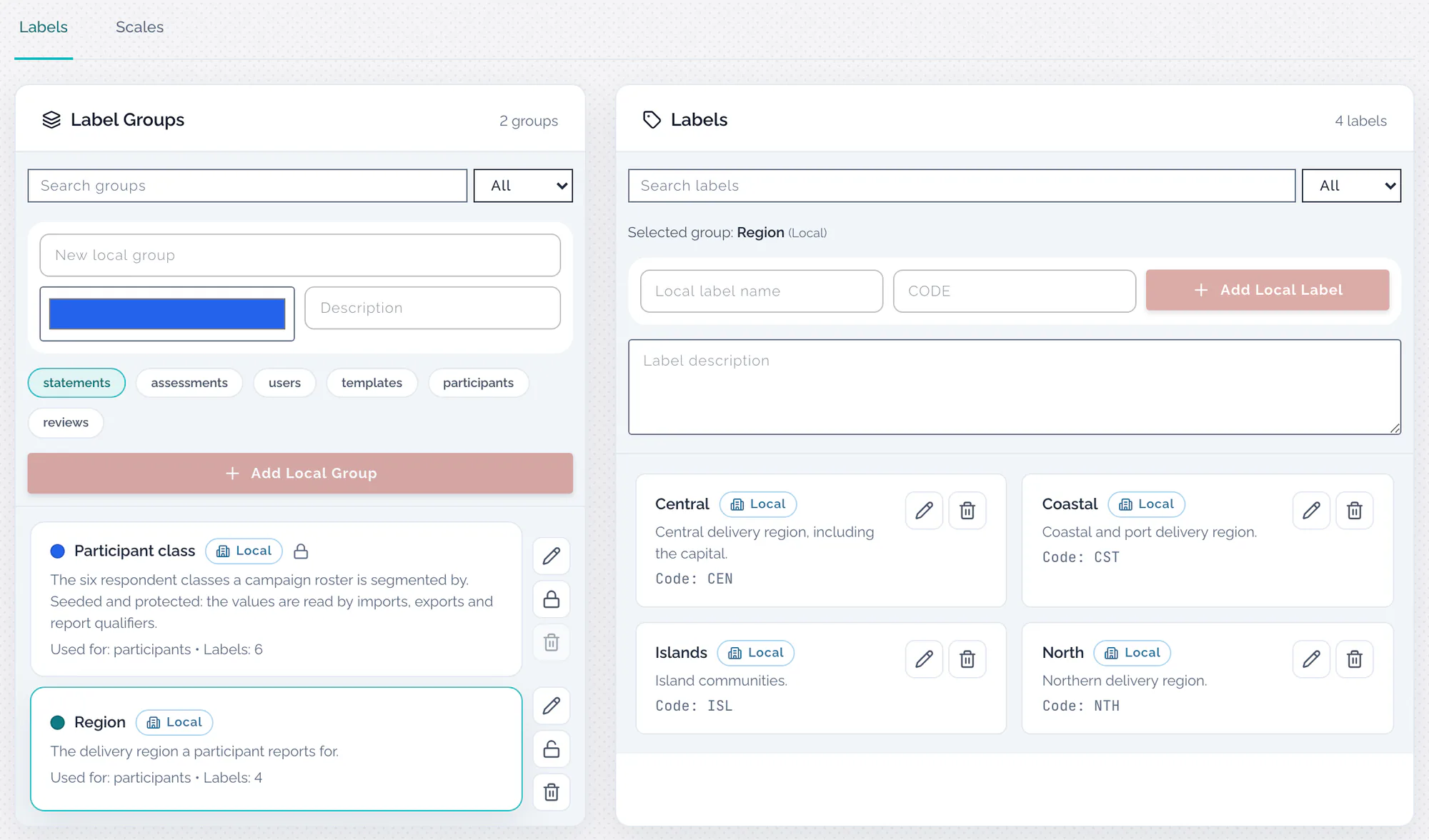
On the Labels tab, Label Groups is on the left and the selected group's Labels on the right. Each list has a search box and a filter: All, Global or Local. Each group and label carries a Global or Local badge.
With a local group selected, the tab looks like this:
Create a label group
At the top of Label Groups:
- Type the group's name.
- Pick a colour, and type a description if you want one.
- Choose what the group is Used for. statements is chosen to start with, and at least one must stay chosen.
- Choose Add Local Group.
Only the name can be changed afterwards. The colour, the description and Used for are fixed once the group is created, so choose them with care.
A group name may be used only once in the account, whatever its capitals: a second one is refused with "A label group with this name already exists".
Add labels to a group
Select the group, then at the top of Labels:
- Type the label's name under Local label name.
- Type its Code. It is stored in capitals.
- Optionally add a Label description.
- Choose Add Local Label.
As with groups, only the name can be changed afterwards. A label name may be used once in its group. For a global group the form is replaced by "Global group is read-only in account scope.": you cannot add your own labels to a platform group.
Lock, rename and delete
Each local group has three buttons: rename, lock (or unlock) and delete. Each local label has rename and delete.
- Lock a group to freeze its labels. While it is locked nobody can add, edit or delete its labels ("This local group is locked. Unlock it to create or edit labels."), and the group cannot be deleted. It can still be renamed.
- Renaming asks for the new name and changes nothing else.
- A group can be deleted only when it is empty. A group that still has labels is refused with "Cannot delete group with labels", after you confirm; delete its labels first.
- Deleting a label is permanent, after you confirm. There is no check that the label is in use, and nothing that used it is updated: an assessment or a participant that carried it keeps a reference to a label that no longer exists.
Renaming has consequences too. A participant import matches a group by its name
(a label.<group> column) and a label by its name, and so do registration actions that
add labels. Rename a group or a label and the files and form mappings that used the old
name stop matching.
Where labels are used
| Used for | Where you meet the group |
|---|---|
| assessments | An assessment's settings, in its Labels section. A questionnaire can route on the labels its assessment and campaign carry |
| participants | Giving one answer per department or project: an assessment's Group Named By: setting. Also the label fields when you add a participant, the label.<group> columns of a participant import, and registration actions that add labels |
| templates and statements | The question-labels picker in the template builder, and the label IDs on statements in the Knowledge Base |
| reviews | The auditor's Review level choices (see below) |
Two groups are created for you when they are first needed:
- Participant class, locked, with the six participant classes. It appears the first time participants are imported or labelled in bulk.
- Review level, used for reviews, empty and unlocked. It appears once auditors start saving reviews. Its labels are the levels an auditor can choose when reviewing an answer; until it has some, the auditor sees "No review levels defined for this account." with a Manage labels link to this page. Add the levels as labels in this group. A group you create yourself with the same name is not used.
Member labels on Team & Access are typed freely and do not come from this page.
Limits and gotchas
- No caps. There is no limit on the number of groups or labels.
- Codes need not be unique. Two labels in a group can share a code. Keep them unique yourself, because template questions refer to labels by their codes.
- Names that differ only in spaces, hyphens or punctuation ("Service area" and "Service-area") look different to you but the same to an import, which then matches neither.
- 25 labels a person. A participant import, and the participant list's label editor, accept at most 25 labels for one person.
Related pages
- Build an assessment template: label references on questions.
- Add people to a campaign
- Run registration intake
- Review answers and share feedback
- Knowledge Base
- Glossary: label group