Administrators
Documentation
Assessor.io documentation
Assessor.io runs assessment campaigns for the built environment. These guides walk through every screen, from building a questionnaire to publishing maturity results.
⌘K
Common tasks:Create a campaignInvite membersSet your passwordRelease results
Participants
Asked to answer an assessment?
Open your invitation, agree to take part, answer and submit. The step-by-step guide shows every screen, in English and in French.
Start the step-by-step guide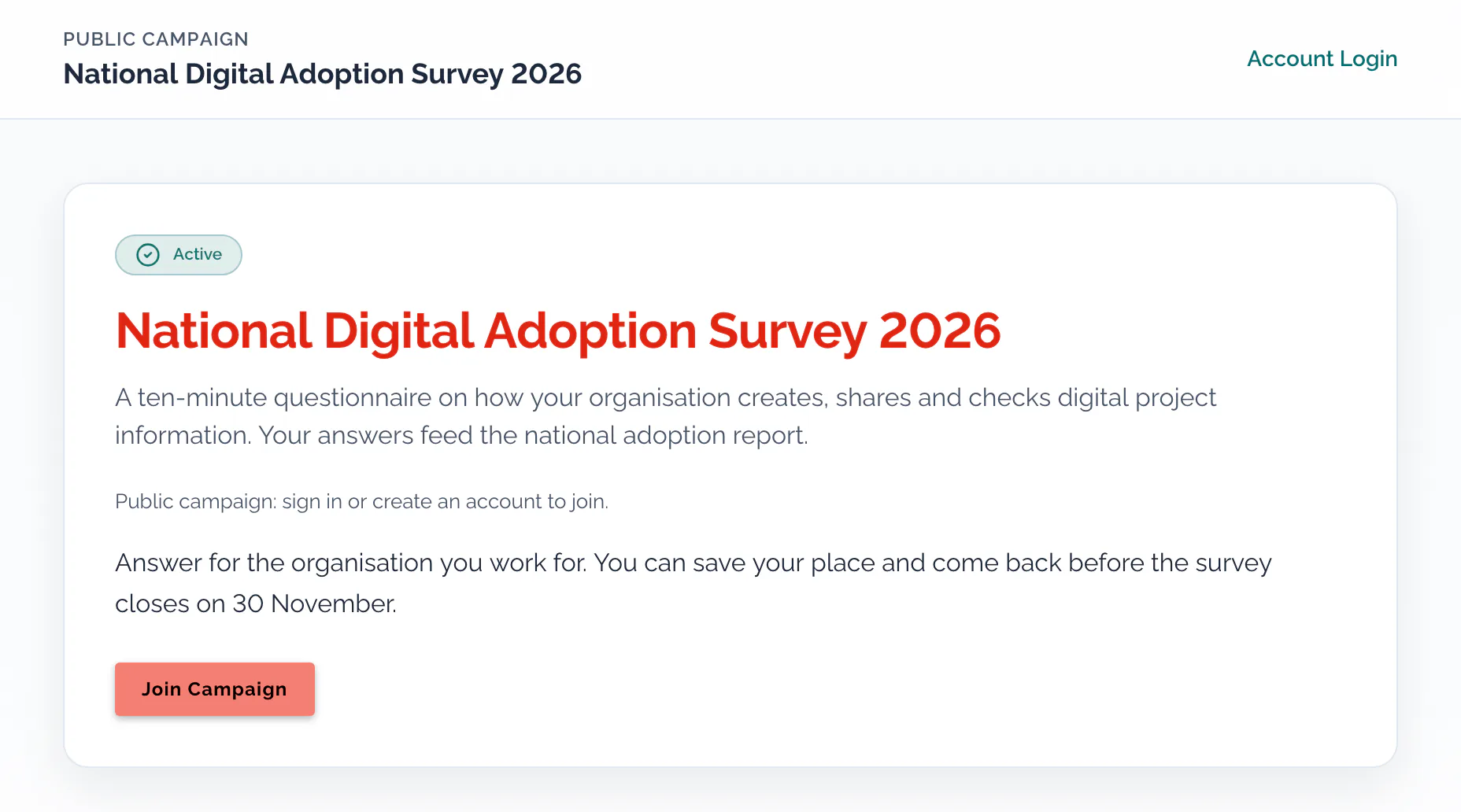
Featured guides
New in October 2026
Consent reminders and a remove-me link
Someone who started without agreeing to take part gets one reminder saying their answers cannot be counted yet. Every reminder now carries a “Remove me from this campaign” link.
Add people to a campaign: people who started without consentingList a campaign on the front page
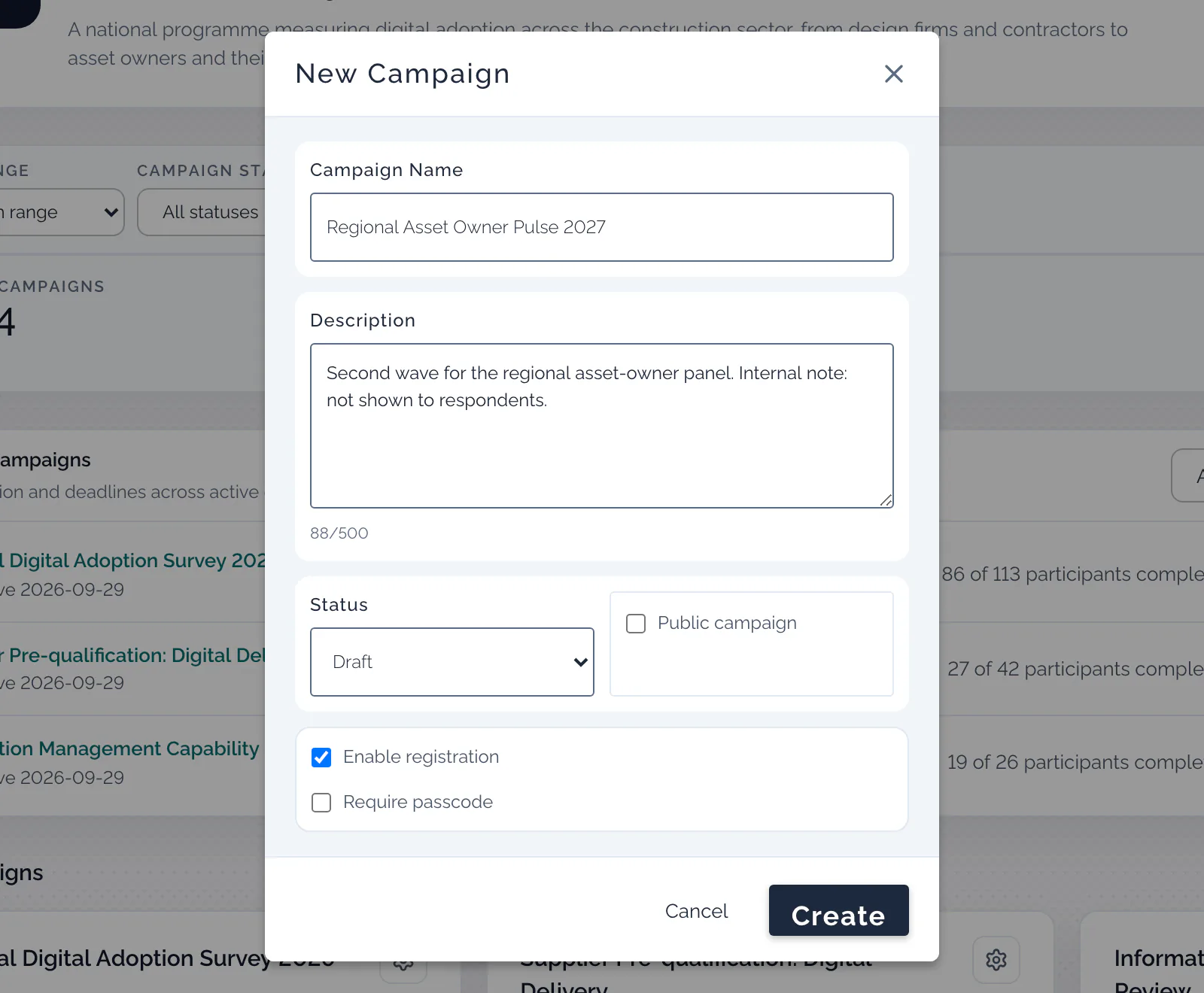
Switch on List on assessor.io and an open campaign appears on the Assessor.io home page. It is off by default, and a copied campaign starts unlisted.
Create a campaign: List the campaignEvery public campaign on one page
Visitors can search every listed campaign and filter by how to join and by language.
Join an assessment: find an open campaignInvitation codes on the front page
Type a campaign’s code on the Assessor.io home page to open it. For an invitation-only campaign, sign in with the address you were invited at: if it is on the invitation list, you go straight in.
Join an assessment: if you were given a code
Five words to know
- Account
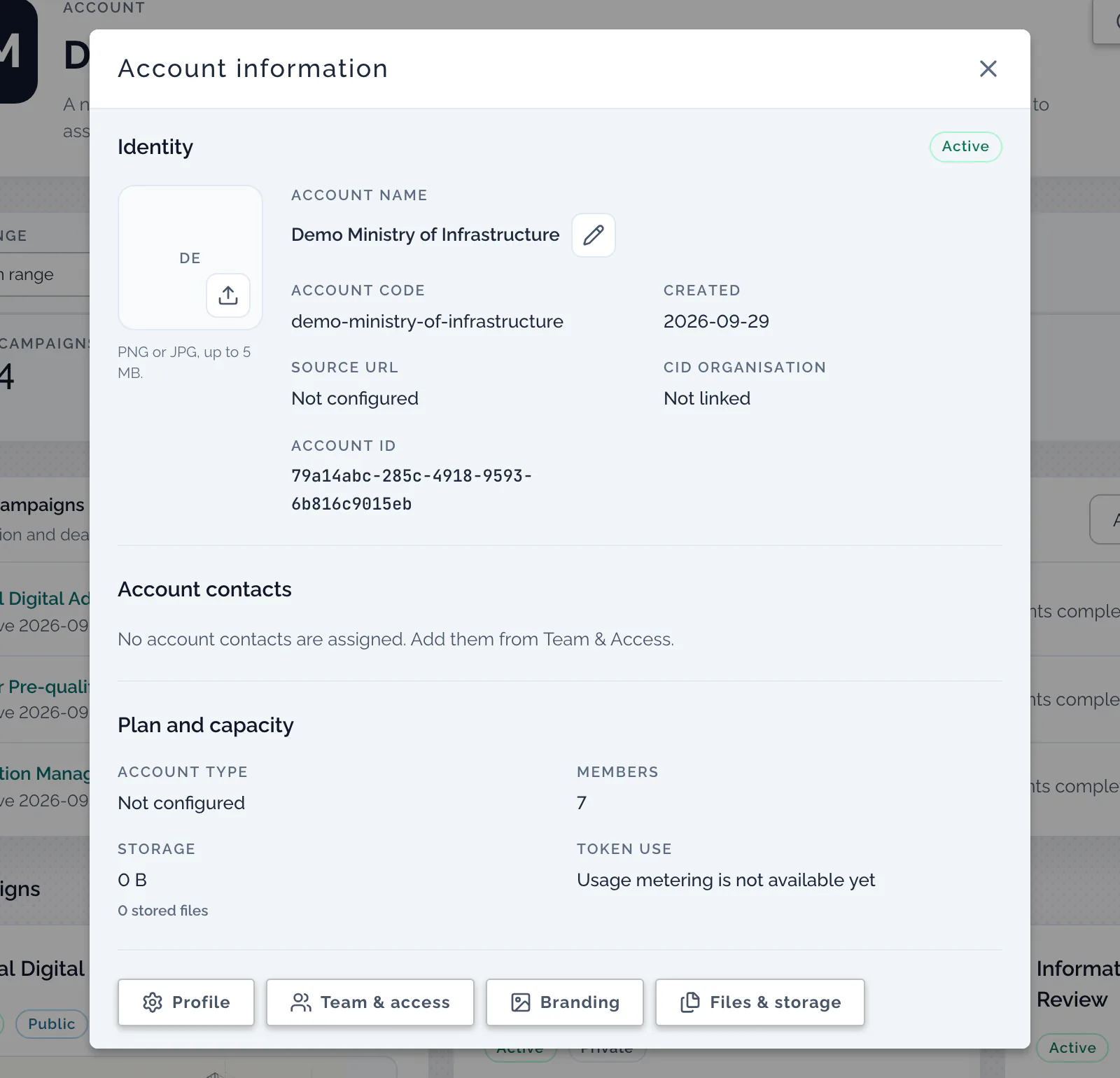
- Your organisation’s workspace. Campaigns, templates, members and reports all belong to one account.
- Campaign
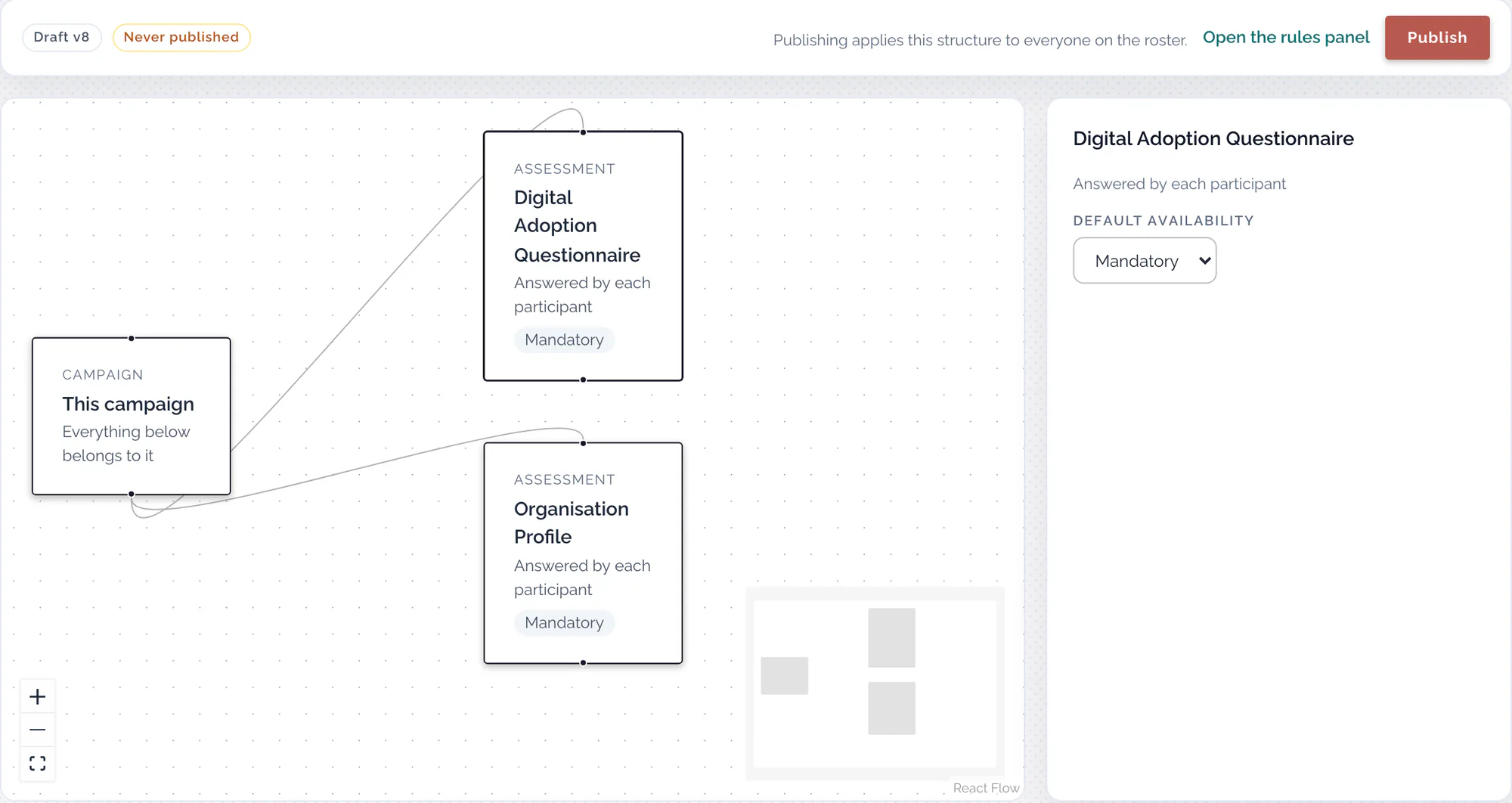
- One round of assessment: who takes part, which assessments they answer, and when.
- Assessment
- A questionnaire published inside a campaign: the thing a participant opens and answers.
- Template
- The reusable set of questions an assessment is built from.
- Participant
- A person taking part in a campaign, answering its assessments.
Need help?
Answering an assessment
Contact the organisation running the campaign first: they sent your invitation or published the link. If a link will not open, this guide covers the usual causes.
Get back in if you are locked out